Updated on: April 5, 2023
Welcome to xlCompare Help Library
xlCompare
is a utility for comparing and merging Excel files. It can save you a lot of
time and resources spent to comparing and validating your spreadsheets.
xlCompare
has a lot of options you can use to achieve the best comparison results on your
Excel files.
You
can seamlessly find matching and unique rows in your worksheets, filter
specific segments of data, and create presentation reports.
xlCompare makes complex things simple!

Using xlCompare
Primary functions of the xlCompare
xlCompare
is an application that find differences in Excel files. It solves a variety of
tasks that are based on the spreadsheet comparison:
- merge Excel files
- get duplicates in two Excel worksheets
- get mismatching rows in two worksheets
- compare several columns in Excel files
- external diff viewer for third-party applications
In
addition to the functions listed above, xlCompare provides following features
for free:
- Compare XML files for differences
- Evaluate Formula Logic in Excel files
In
this context FREE means, that function doesn’t require xlCompare license. It
works even if xlCompare evaluation license has expired.
List of supported file formats
xlCompare
supports following file formats:
- XLS
- XLSX
- XLSM
- XLA
- XLAM
- CSV
- TXT
- XML
Open file in xlCompare
There
are several ways to open Excel files in the application:
- Drop your files into xlCompare from Windows Explorer
- Using File | Open File command in the menu
- Using Browse For File button on the FILE1 or FILE2 panel
Save file in xlCompare
To
save your file on disk use one of the following methods:
- File | Save command in the menu
- Save and Save As buttons on the FILE1 and FILE2 panels
Compare Excel files
Step-by-step
instruction how to compare two Excel files for differences:
- Open your files in xlCompare
- Check if Primary Keys are set correctly
- Use File | Compare Files command in menu or F6 hotkey
- xlCompare shows you Comparison Wizard window
- Make sure that worksheets are grouped correctly
- Complete the wizard by clicking Compare button
- Get the difference report
Compare Excel sheets
Step-by-step
instruction how to compare two Excel worksheets for differences:
- Open your Excel file(s) in xlCompare
- Select worksheet you would like to compare in the left and right panels
- Check if Primary Keys are set correctly on both worksheets
- Use File | Compare Sheets command in menu
- xlCompare shows you Comparison Wizard window
- Complete the wizard by clicking Compare button
- Get the difference report
Compare three Excel files
- Enable 3-File option that is present on the Compare tab on the ribbon. Now xlCompare shows you 3 panels to open your workbooks.
- Drop 3 files you would like to compare into appropriate panels.
- Get the difference report.
When
you compare 3 files xlCompare doesn’t show Comparison Wizard where you can
change worksheet grouping and comparison strategy.
Merge Excel files
Get
the comparison report for selected Excel files using the instructions above.
Select
Merge tab on the Ribbon
Use
one of the following commands to populate your worksheet with data from other file:
- Update Cells From Left
- Insert Columns From Left
- Insert Rows From Left
- Update Cells From Right
- Insert Columns From Right
- Insert Rows From Right
Setup Primary Keys
Primary
Keys is an important feature in the xlCompare. It is responsible for getting
accurate results.
Mark column as key
- Select column on the worksheet
- Right Click on the heading
- Use Key Column command in the context menu
Clear key
- Select column on the worksheet
- Right Click on the heading
- Use Standard Column command in the context menu
Clear all keys on the worksheet
- Select all the worksheet area by clicking on the top left part of the heading
- Right Click on the column heading
- Use Standard Column command in the context menu
Mark row as heading
- Select row on the worksheet
- Right click on the heading
- Use Heading Row command in the context menu
Clear heading row
- Select row on the worksheet
- Right click on the heading
- Use Standard Row command in the context menu
Sort the worksheet
- Select columns you would like to use as key values for sorting
- Right Click on the column heading
- Use Sort | Ascending or Sort | Descending commands in the context menu
Open previous session
xlCompare
remembers previous comparisons, including all the settings applied to the
worksheets. To back to one of the most recent sessions, do the following:
- Use Recent Icons command on the Compare tab on Ribbon
- Select the session you would like to reopen
- Double click on this item in list
- xlCompare reopens this session and gives you difference report
How to activate xlCompare
After
your evaluation period expires, you should order a license. Use instruction
below to activate the software on your computer:
- Select Help tab on the Ribbon
- Use Activate command
- Press Order Ref# button
- In the opened window enter your email and order ref# number (password from your Spreadsheet Tools account)
- Press Complete button
- You should get a message from xlCompare about successful activation
Transfer xlCompare to another computer
After
you change your computer, you should not order xlCompare license again. You can
use your existing license on the new computer.
To transfer your license, do the following:
Login
to your account in the Spreadsheet Tools Customer Area in your browser using
this link:
your
login is e-mail used to order xlCompare
your
password is your order reference number
Select
the Activations page
If your new computer has same name as previous one:
Copy
existing Activation Key into your xlCompare
If your computer has another name:
Remove
the activation you have for the unused computer by pressing the X button near
Activation Key.
Repeat
the activation using the instructions above.
Where to find your Computer Name
- Open Windows Explorer
- Select ThisPC node in the folders view
- Right clink on ThisPC node
- Select Properties command in the context menu
- DEVICE-NAME field contains your Computer Name
Commands Reference
xlCompare
uses Ribbon to display menu commands and options.
This
section contains list of the menu commands that are present in the xlCompare
application.
Compare Menu

Compare Files
Compares
2 opened files (Excel workbooks, XML files) for differences and presents
comparison report.
If there
are at least one empty worksheet on the screen, xlCompare opens Select 2 Files
window or Select 3 Files window, depending on the option Compare 3 Files.
When
every panel contains a non-empty Excel file, xlCompare displays Comparison Wizard
window. After completing the Comparison Wizard, you are presented with a
difference report.
Compare Sheets
Compares
2 or 3 selected worksheets (depending on the Compare 3-Files option) for differences
and presents you with a comparison report.
When
using this command, you are getting
Comparison
Wizard
window, where you to confirm the
comparison options. After you complete this wizard xlCompare displays you a
comparison report.
Compare Folders
Displays
Compare Folders
window. After you select two folders to be compared application gives you a
comparison report that present you with a different files
found in the selected folders.
If
you select Include Subfolders switch in the Compare Folders window, all the
subfolders are included into comparison.
Options
Displays
Options
window. Please, refer to the Options
section that describes all the application options.
Manage Columns
Displays
Manage Columns
window. Manage columns window allows to:
- Show\Hide columns
- Ignore columns
- Link one column with column on the other sheet
- Setup a vocabulary for the column
Please,
refer to the Manage Columns
window for the more detailed information.
3-Files
Enables
or disables Compare 3 Files option. Button reflect enabled 3-File option with a
pushed state.
When
Compare 3 Files option is selected, xlCompare shows additional panel, when you
can open third file for comparison.
Display Results
Displays
Difference Report panel on the bottom part of the application window.
Difference Report contains complete structured list of all differences found in
the selected files.
This
command allows to show or hide the Difference Explorer panel. By default,
Difference Explorer is hidden.
Please,
refer to the Difference Explorer
section for the more detailed information.
Recent Items
Displays
list of the previous comparisons.
xlCompare
remembers all parameters of the comparison, including:
- primary keys
- hidden columns
- ignored columns
- linked columns
- vocabulary
When
you are reopening the recent comparison in the xlCompare all the settings
specified above are applied to the workbooks.
To
open recent comparison, double click on the selected item or select it and
press Open button.
All Cells
This
command is active in the comparison report only. Displays all cells in the
comparison report.
Matching Rows
Displays only rows with all equal cells, on the worksheets. This
command is active in the comparison report only.
Updated Rows
Displays
only rows that contains at least one changed cell, on the worksheets. This
command is active in the comparison report only.
Unique Rows
Displays
only rows, that doesn’t have matching row on the corresponding worksheet. These
rows are presented with green and red color in the report. This command is
active in the comparison report only.
Mark Changes with Color
Copies
cell formatting options, applied to cell in the comparison report (updated
cell, changed style, inserted row, and deleted row) permanently.
After
you exit from the comparison report all cells remains their highlighting.
If
you apply this command with Extended View option active, value of every updated
cell is added to the value of the original cell. This changes numeric values to
their string representation and may affect the formulas.
Create Report
Creates
outlined report that presents all differences found in the compared workbooks.
Report is shown in the form of the
Outlined
Report
window.
Please
refer to the Outlined Report
window for more information.
Export PDF
Displays
Print Preview window with all the highlighting applied to cells in the
comparison report.
Print
button in the Print Preview window saves report into PDF file on disk.
Close Report
Exits
from the Difference Report mode. All cells on the worksheet receives their
original formatting options. Color highlighting for the different cells is
removed.
This
command closes Difference Explorer
window.
Merge Menu

Display Commands
Turns
on or off merge commands in the updated cells and in the unique rows and
columns. This command represents state of the Display Merge command option.
Merge Files
Selects
two Excel files and merges contents of the left file into corresponding
worksheets on the right file.
This
command doesn’t compare Excel files for differences. It just copies data from
the left file into the right one.
Merge Sheets
Copies
all cells from the left worksheet into the bottom of the right sheet.
Merge Folder
Merges
all files in the specific folder into one file. Data is merged in the worksheets
with similar names.
This
command is a Merge Files command applied to all Excel files withing one folder.
Update Files
Compares
two opened Excel files for differences and applies all changes in the left file
to the right one.
All
updated cells are applied to the right file.
All
the new rows in the left file, that doesn’t have corresponding rows in the
right one is copied into the right file.
Update Sheets
The
same command as Update Files but applies to the selected worksheets only. All
updates made in the left worksheet are applied to the right sheet.
Insert Rows from Left
Copies
all new rows from the left file into the right file.
Insert Columns from Left
Copies
all new columns from the left file into the right one.
Update Cells from Left
Copies
values and formatting of all updated cells from the left file into right one.
This command processes only values of the changed cells. Cells in the unique
rows are not processed.
Insert Rows from Right
Copies
all new rows from the right file into left one.
Insert Columns from Right
Copies
all new columns from the right file into the left one.
Update Cells from Right
Values
from all updated cells in the right file are copied into the left file
including their formatting. Every merged cell is highlighted with color.
Undo Merge
Reverts
all merge commands that was applied to compared files. Every cell receives its
original value and formatting.
Extract Menu
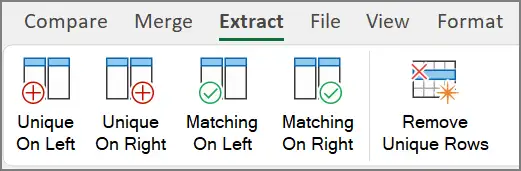
These
commands are applicable in the comparison report mode only. After command is allied,
xlCompare exits from the comparison report.
Unique On Left
Removes
all equal and updated rows on the left worksheet and leaves only unique rows.
Right worksheet is not modified.
Unique On Right
Removes
all equal and updated rows on the right worksheet and leaves only unique rows.
Left worksheet is not modified.
Matching On Left
Leaves
matching and updated rows in the left worksheet and removes all unique rows,
that doesn’t have a corresponding row in the right file.
Matching On Right
Leaves
matching and updated rows in the right worksheet and removes all unique rows,
that doesn’t have a corresponding row in the left file.
Remove Unique Rows
Removes
all unique rows on both worksheets. This command leaves only rows that have
corresponding row on the other sheet.
File Menu

Open File 1
Select
file on disk and open it in the left (FILE1) panel.
Open File 2
Select
file on disk and open it in the right (FILE2) panel.
Save File 1
Save
file opened in the left panel (FILE1).
Save File 2
Save
file opened in the right panel (FILE2).
Save All
Save
all opened files on disk.
Print PDF 1
Exports
left file into PDF format. If this command is applied in the comparison report
mode, PDF file receives color highlighting that is allied to every updated and
new cell in report.
Print PDF 2
Exports
right file into PDF format. If this command is applied in the comparison report
mode, PDF file receives color highlighting that is allied to every updated and
new cell in report.
Close File 1
Close File 2
Closes
file opened in the right panel (FILE2). If file was changed, xlCompare asks you
to save a file before it is closed.
Close All
Closes
all files opened in the xlCompare.
View Menu

Sheets
Displays
worksheets in the xlCompare window.
Names
Displays
names, defined in the opened Excel files. This command hides the worksheet
window and displays list of the defined names.
Tables
Displays
information about all tables in the opened workbooks. All columns that are
defined in the tables are reflected in this window.
XML
This
command is applicable only when one of the opened files is in the XML (VML,
HTML) format.
With
this option is selected, xlCompare displays XML file in a form of tree control
that reflects hierarchical structure of the file.
If
XML option is turned OFF, xlCompare uses alternative representation of the XML
file – outlined worksheet, that also reflects the structure of the XML
document.
VB Project
Displays
contents of the Visual Basic projects in the opened Excel files. xlCompare
displays code modules and forms with controls in this window.
Zoom
Displays
Zoom window that changes zoom in the selected files.
100%
Sets
zoom to 100% in all the opened Excel files.
Left Panel
Turns
ON or OFF left panel in the application. State of the panel is reflected by the
command icon.
Right Panel
Turns
ON or OFF right panel in the application. State of the panel is reflected by
the command icon.
First
Activates
first difference in the comparison report. xlCompare selects cell in the
worksheet view and item in the difference explorer (if this window is visible)
Prev
Selects
previous difference in the list.
If
difference represents updated cell xlCompare selects cell on the worksheet and
item in the Difference Explorer window.
If
difference represents new row or column – xlCompare selects entire row or
column and appropriate item in the Difference Explorer window.
Next
Selects
next difference in the list.
If
difference represents updated cell xlCompare selects cell on the worksheet and
item in the Difference Explorer window.
If
difference represents new row or column – xlCompare selects entire row or
column and appropriate item in the Difference Explorer window.
Last
Activates
last difference in the comparison report.
Format Menu

This
tab contains set of standard command that allows to change cell formatting
options, including the:
- Font name
- Font size
- Font attributes
- Text Color
- Fill Color
- Cell Border
- Text Alignment
- Number Formatting
Merge
Merges
contents of the cells in the selected range
Undo
Reverts
last modification made on the worksheet.
Redo
Repeats
last modification, that was reverted with Undo command.
Commands Menu
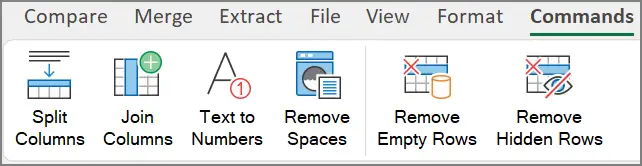
Split Columns
Divides
text on the selected columns(s) by specific delimiter. Places portions of the
text into the next right cells.
This
command asks you for the delimiter you would like to use to divide cell values
into parts.
Join Columns
Joins
several cells in the row into one leftmost cell using specific delimiter.
This
command asks you to provide a delimiter used to join cell values.
Resulting
value will be a test string. All numeric values are converted into text strings.
Text to Numbers
Converts
numbers stored as text strings into numeric values.
Remove Spaces
Trims
cells on the selected worksheet. xlCompare removed leading and trailing spaces
in every cell that contains text value.
Remove Empty Rows
Removes
all empty rows on the selected worksheet.
Remove Hidden Rows
Removes
all hidden rows on the worksheet. If rows were hidden by applying auto filter
command. They are also removed from the worksheet.
Table Menu
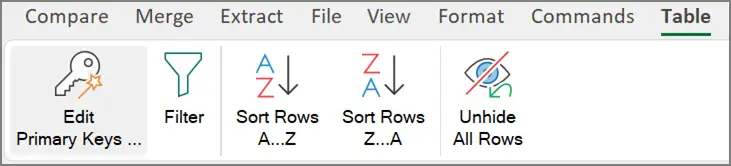
Edit Primary Keys
Displays
Primary Keys window that allows to select and clear primary keys on all the
worksheets in all opened workbooks.
This
window allows to check order of the primary keys selected on the worksheet.
Refer
to the Primary Keys window for more information.
Filter
Applies
Auto Filter command on all selected worksheets.
Auto
Filter command creates a table that takes all the used range on the worksheet
and creates a filter button for every column.
If
worksheet already have auto filter table, new table is not created.
This
command allows to create a virtual auto filter table when you are working in
the comparison report more.
After
you exit from the comparison report this virtual table is removed.
Sort Rows A..Z
Sorts
rows on the worksheet in the ascending order. Rows are sorted by selected
columns. If now columns are selected on the worksheet, command is not
applicable.
Sort Rows Z..A
Sorts
rows on the worksheet in the descending order. Rows are sorted by selected
columns. If now columns are selected on the worksheet, command is not
applicable.
Unhide All Rows
Unhides
all rows on the worksheet by cancelling all filters in all tables on the sheet,
unhiding all rows that where hidden by user and switching comparison filter to
All Cells.
Tools Menu

Opens
Print Preview window that shows worksheet (all or selected worksheets) from the
active file.
In
the Print Preview mode, you can send document to printer.
If
this command was applied in the comparison report mode preview window contains
color highlighting that was applied to cells on the worksheet.
Find and Replace
Displays
Find and Replace dialog that is identical to find window in the Microsoft Excel
application.
It
allows to find cells with specific value and to replace contents of string with
other values.
Go to ...
Opens
GoTo window. Provide an address you would like to
select and xlCompare will select is for you.
If
selected address belongs to the hidden area on the worksheet – row or column is
hidden, xlCompare unhides this portion of data to displays the value.
Recalculate All
Recalculates
all formulas in all Excel files, opened in xlCompare.
Evaluate Formula
Displays
Evaluate Formula window. This window allows to explore formula logic by
dividing the formula into sub-expressions. You can drill-down into the
calculations in this window.
Refer
to the Evaluate Formula Window topic for more information.
Trace Precedents
Displays
precedents of the selected formula in a hierarchical tree form. This is
alternate representation of the precedents in the Excel workbook.
Display Errors
Displays
all cells that contains error values.
In
this window you can export list of errors or evaluate value of every error cell
usinig the Evaluate Formula window.
Run Macro
Runs
VB macro that is stored in a file on disk.
Console
This
window is used by Spreadsheet Tools engineers for remote debugging.
Help Menu

Help
Opens
Help page on the xlCompare website in browser.
YouTube
Opens
Spreadsheet Tools YouTube channel in your browser.
Updates
Checks
xlCompare.com website for updates. If update available, you are navigated to
the download page on the xlCompare website.
Contact us
Opens
contact form on the xlCompare website.
Use
this form for all types of questions: technical support, bug reports, requests
for demo and for sales questions.
Activate
Opens
Activate window where you can activate your copy of xlCompare.
Refer
to the Activate window for more information.
Order
Opens
Order page on the xlCompare website in browser. This page contains pricing
information, ordering questions and instructions on how to activate the
software.
Language
Selects
language for the xlCompare main window. After you change language in settings
you need to restart the xlCompare, so changes will take an effect.
About
Displays
version information, copyright, and status of your xlCompare license.
If
your license is Evaluation or Expired, xlCompare allows you to enter Activation
Key to activate the software.
Context menu reference
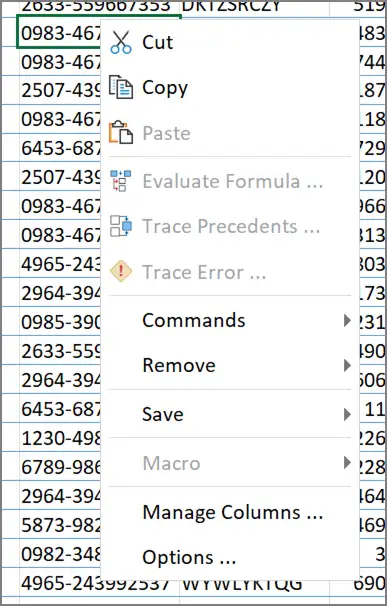
Context
menu is a popup menu shown by xlCompare when you right click on the cell, row
heading or column heading on the worksheet.
Cut
Copies
contents of the selected area into clipboard. After data is pasted
original range is cleared.
Copy
Copies
contents of the selected area into clipboard.
Paste
Paste
data from the clipboard into selected range of cells.
Evaluate Formula
Display
Evaluate Formula window for the selected cell.
Refer
to the Evaluate Formula window for more information.
This
command is available ONLY if selected cell contains formula.
Trace Precedents
Displays
Precedents window for the selected cell.
This
command is available ONLY if selected cell contains formula.
Trace Error
Displays
Evaluate Formula window for the selected cell and automatically expands all
error sub expressions in this window.
This
command points you to the source of the error value.
This
command is applicable to the formulas that produce error value only.
Commands Menu
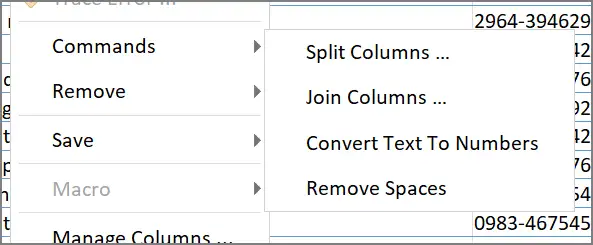
Split Columns
Split
text values in cells in the selected area into parts by using delimiter.
Portions
of the values are pasted into cells from the right of the selection.
Join Columns
Joins
values of the selected cells into one value, that is inserted into left most
cell of the selection.
Values
are joined with a delimiter you should provide for this operation.
Convert Text to Numbers
Converts
all text string into their numeric equivalents in the selection.
Remove Spaces
Removes
leading and trailing spaces in all cells in the selected area.
Remove Menu
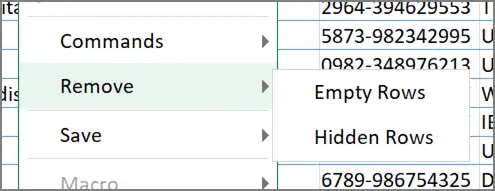
Empty Rows
Permanently
removes all empty rows on the selected worksheet.
Hidden Rows
Permanently
removes all hidden rows on the selected worksheet.
Save Menu
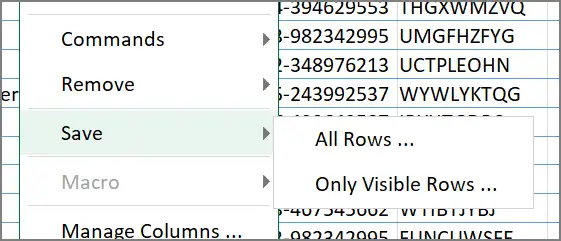
All Rows
Saves
all rows on the worksheet into other file on disk. Hidden rows are saved and
appear as hidden in the new file.
Only Visible Rows
Saves
only visible portion of the worksheet data. Hidden cells are not copied into
the new worksheet.
Manage Columns
Displays
Manage Columns window for the selected worksheet.
Refer
to the Manage Columns window to get more information.
Options
Displays
Application Options window.
Refer
to the Options topic to get more information on the options present in
xlCompare.
Commands that are visible on the Column Heading only
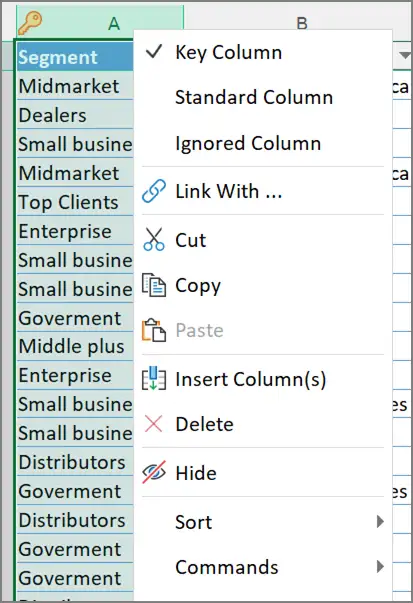
Key Column
Marks
selected column(s) as Primary Key. Primary Key is used to identify rows on the
worksheet, when xlCompare compares Excel tables.
Standard Column
Marks
selected column(s) as Standard. Standard columns are not used to identify rows
as matching. xlCompare uses is to compare cell values only.
Current
state of the column is reflected with a checkmark icon in the appropriate menu
item.
Ignored Column
Mark
column as Ignored. Ignored columns are visible, but not considered, when
xlCompare looks for the differences on the worksheets.
Link With
Binds
one column in Left file with another column in the Right file. xlCompare will
compare cells in one linked column with corresponding cells in the other linked
column.
This
command allows to bind two columns with different names or when application is not
able to identify that columns represent the same data.
Insert Column(s)
Insert
columns into selection.
Delete
Delete
selected columns from the worksheet.
Hide
Hide
selected columns.
Unhide
Unhides
columns between two selected columns. If all worksheet area is selected
xlCompare unhides all columns on the sheet.
Sort Menu
Ascending
Sorts
rows on the worksheet, by values of the selected columns in the ascending
order.
Descending
Sorts
rows on the worksheet, by values of the selected columns in the descending
order.
Commands that are visible on the Row heading only
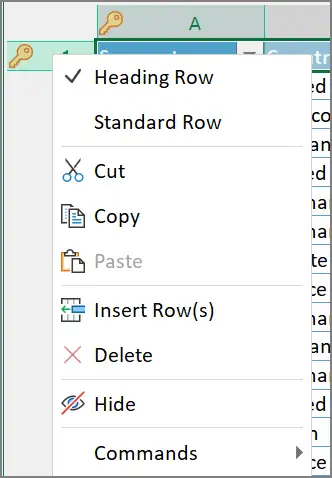
Heading Row
Marks
selected row(s) as heading. Heading row is usually a row that contains field
names. It is used to identify and align columns on the worksheet.
Standard Row
Marks
row as Standard. Standard row is a usual row that contains data to be compared.
Insert row(s)
Insert
row(s) into selection.
Delete
Delete
selected rows.
Hide
Hides
selected rows.
Unhide
Unhides
all rows between two selected rows. If all worksheet area is selected – this
command unhides all rows on the sheet.
Windows Reference
This
section explains all the windows that are used in xlCompare for various
purposes.
Activate Window
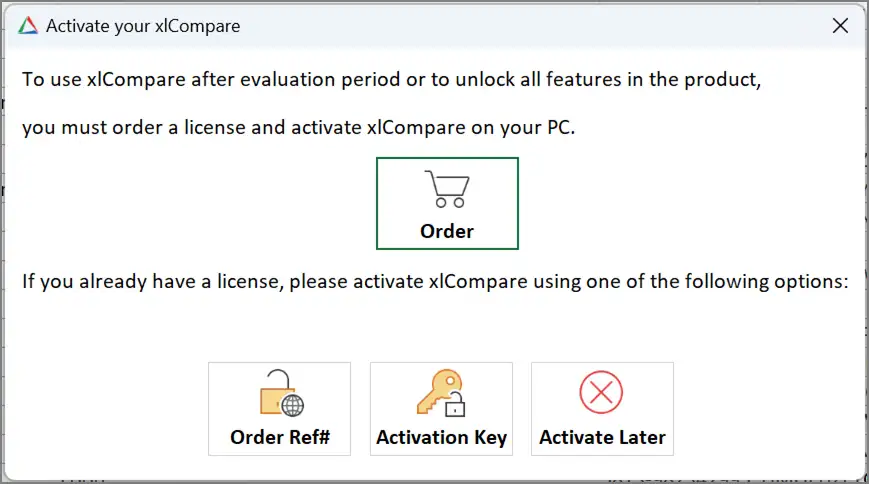
Activates
copy of the xlCompare on your computer.
Order
Opens
Order page on the xlCompare website in browser.
On
the order page you find detailed information about pricing and instructions how
to order a license.
If
you already have xlCompare license, you should not use this button.
Order Ref#
Activates
xlCompare on-line by entering your e-mail and order reference number. This is
the easiest method of activation.
This
button opens Activate Online window.
Please
refer to the Activate Online topic for more information.
Activation Key
Activates
xlCompare by entering the Key. Use this option if you have a key that unlocks
the software.
This
button opens Enter Activation Key window.
Please,
refer to the Enter Activation Key Window for more information.
Activate Later
Closes
Activation Window and backs you to the xlCompare main window. This button
interrupts the activation process.
More
information on the activation process you can find on the xlCompare website:
Activate Online Window
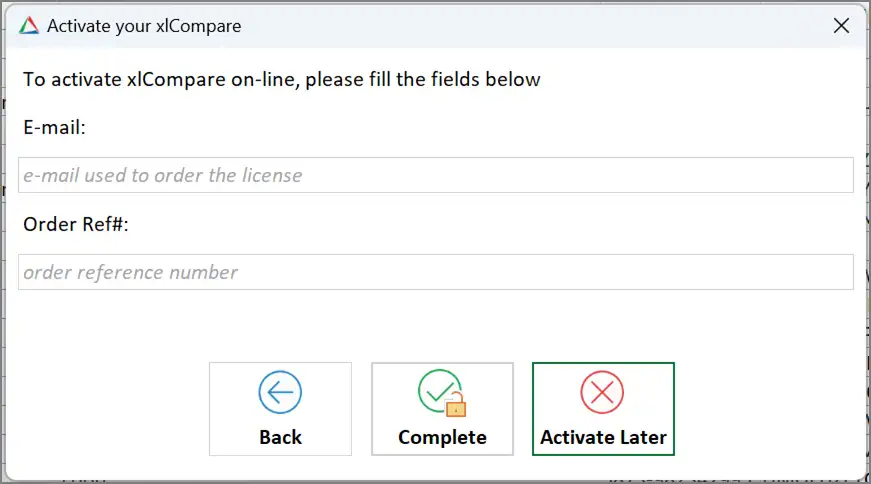
Activates
xlCompare by entering your registration email and order reference number.
E-mail
Enter
your email, used to order xlCompare into this field.
Order Ref#
Enter
your order reference number.
If
your account was created by Spreadsheet Tools stuff, you don’t have order
reference number, but you have a password from your account.
Enter
your password into this field.
Back
Cancels
the activation and closes this window.
Complete
Completes
activation and gives you a message about successful or failed activation, in
case if credentials you’ve provided are not valid.
Activate Later
Cancels
the activation process.
Compare As
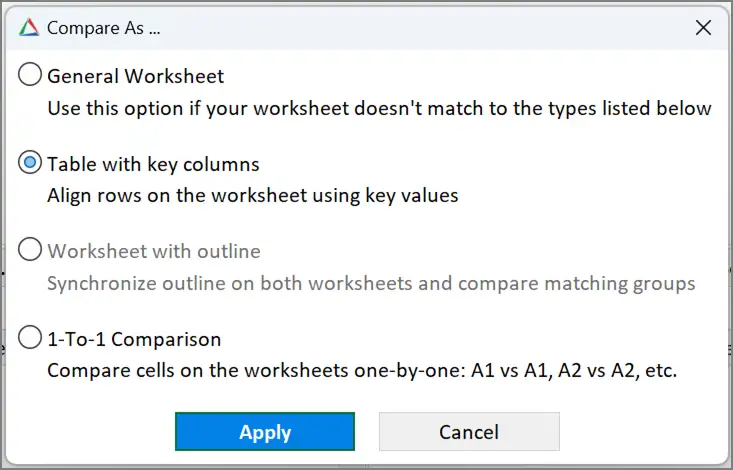
Assigns
comparison strategy to the selected pair of worksheets.
xlCompare
allows to select following strategies, that defines how rows are aligned on the
worksheet:
General Worksheet
This
method represents general case, when order of the rows on the sheet is
important and rows are aligned by the best match.
Excel Table (Compare by Key)
Rows
are aligned by the value of Primary Key columns.
Columns
are aligned by the values of the heading row or by the best match in the
content.
Worksheet with outline
This
algorithm is applicable to the worksheets that have outlined rows. Groups of
rows defines structure that should be used to align rows within groups.
1-to-1 comparison
All
rows and columns are aligned 1 to 1.
Apply
Applies
selected algorithm to the pair(s) of worksheets.
Comparison Wizard
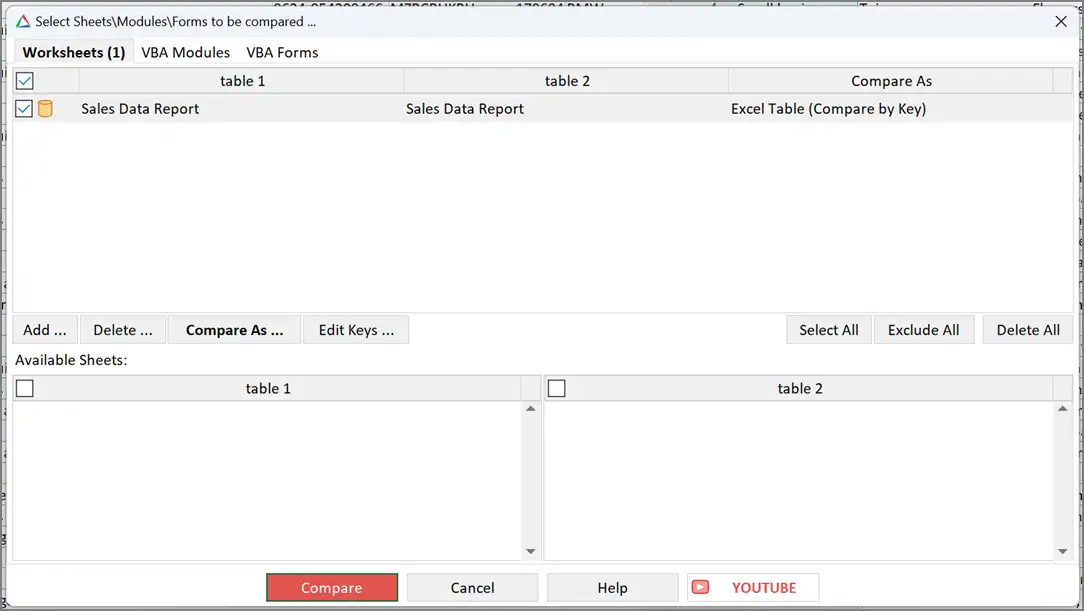
Displays
all the items to be compared by xlCompare in the opened files.
xlCompare
groups items (sheets, modules, forms) into pairs. Every pair is processed by
the application independently from other ones.
This
window is a place where you should select what will be compared in your files.
3 types of compared items
xlCompare
separately selects compared data. Comparison Wizard window contains 3 groups
represented with Tabs:
- Worksheets
- VBA Modules
- VBA Forms
This
allows you to select what would you like to compare. If you are going to do a
complete comparison you can select all the tabs and all VBA modules and forms.
However,
this window allows to exclude any portion of the items to be compared.
Compare As
xlCompare
has different strategies (comparison algorithms) used to align rows on the
sheets. Compare As column displays name of the algorithm, that is assigned to
this pair of sheets.
Every
strategy is reflected in the list with icon assigned to pair of worksheets.
Compare
As button opens the algorithm selection window.
Refer
to the Compare As
topic for more information.
Add
Adds
pair of available worksheets to comparison. Of there
are no available worksheets you are not able to complete this command.
Delete
Removes
pairs of worksheets (VBA modules, VBA Forms), this is selected in the list from
the comparison. Deleted items are added to the lists of available items on the
bottom of each tab.
Edit Keys
Edits
primary keys in all workbooks opened in the xlCompare.
Refer
the Edit Primary Keys window for more
information.
Select All
Selects
all items in the list.
Exclude All
Excludes
all items in the list from comparison.
Delete All
Deletes
all items from the list. All worksheets (VBA modules, VBA forms) are added to
the appropriate available items lists.
Exclude item from the comparison
Every
item shown in this wizard can be in the included or excluded state. Included
items are marked with check icon before name.
Included
state means that this pair of objects will be compared for the differences.
Excluded items are present, but not compared.
Check\Uncheck
checkbox on the heading of the list to check or uncheck all items in list in
single click.
If
you compare two workbooks with a lot of worksheets and need to focus only on
several sheets and ignore others – you need to uncheck the items
you don’t need in this list.
Cancel
Closes
this window without comparing the workbooks.
Compare
Closes
wizard and compares items that are checked in the list.
Compare Folders
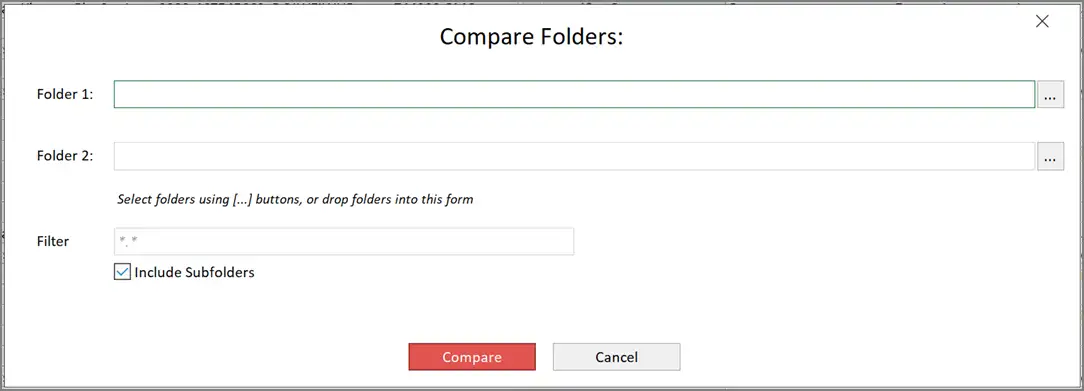
Selects
folder to be compared by xlCompare.
Folder1
Full
path to the first folder. Select folder on your computer using the […] button.
Folder2
Full
path to the second folder. Select folder on your computer using the […] button.
Filter
Wildcard
mask that is used to filter files in folder. Be default *.*
mask is used to compare all files.
Include Subfolders
Includes
subfolders into comparison. With this option disabled, xlCompare doesn’t go
in-depth and just compares files in two opened folders.
Compare
Closes
this window and compares files in the selected folders.
Folder
are imported into xlCompare window as two outlined worksheets.
Comparison
results are represented in a form of two compared sheets with highlighted
changed files.
Every
changed file is presented with a hyperlink in a cell.
By
clicking on the hyperlink, you open comparison report for this file in the
separate instance of xlCompare application.
Enter Activation Key
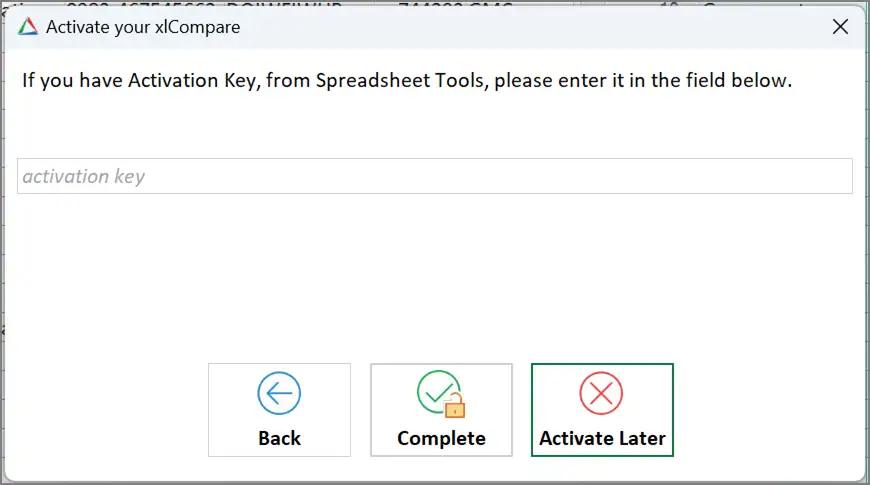
Unlocks
the software with Activation Key.
Enter
Activation Key you have into the field on this window.
Back
Cancels
the activation and backs to the previous window.
Complete
Completes
the activation process. You should receive a message about successful or failed
activation.
Activate Later
Cancel
the attempt to activate the software.
Evaluate Formula
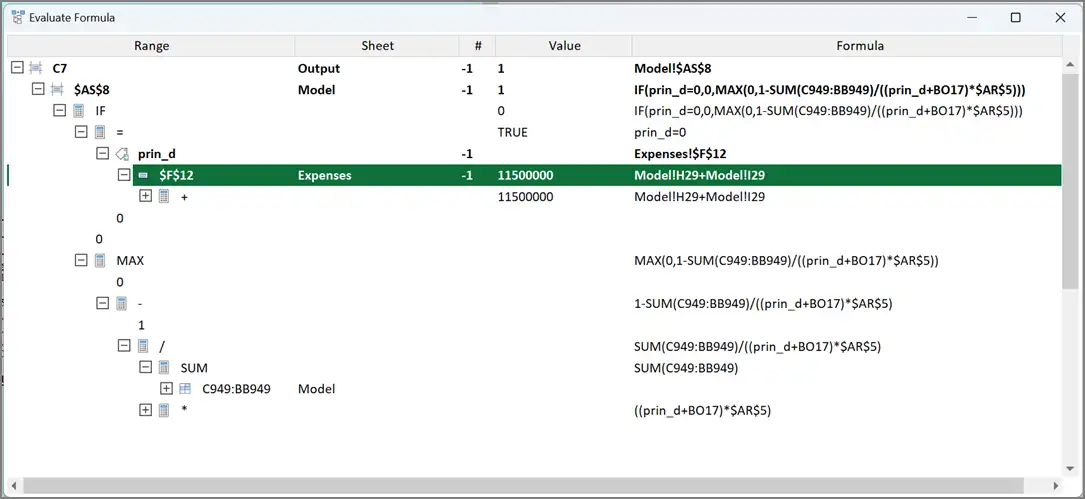
Displays
formula logic in a form of the tree control. That displays hierarchy of the
calculations in this form.
Tree
control allows you to drill down into the calculations in your sheet starting
from the selected cell.
Context menu commands
Find
Opens
find bar to enter range of cells you would like to find in the selected branch.
Trace Calculation
Opens
Evaluate Formula window for the selected cell\range in a separate window.
Trace Precedents
Opens
Trace Precedents window for selected cell.
Display All Formulas
Removes
contents of the current calculation tree. Displays all formulas in this
workbook in this window.
Export List
Exports
selected branch into text file and saves it on disk.
Manage Columns
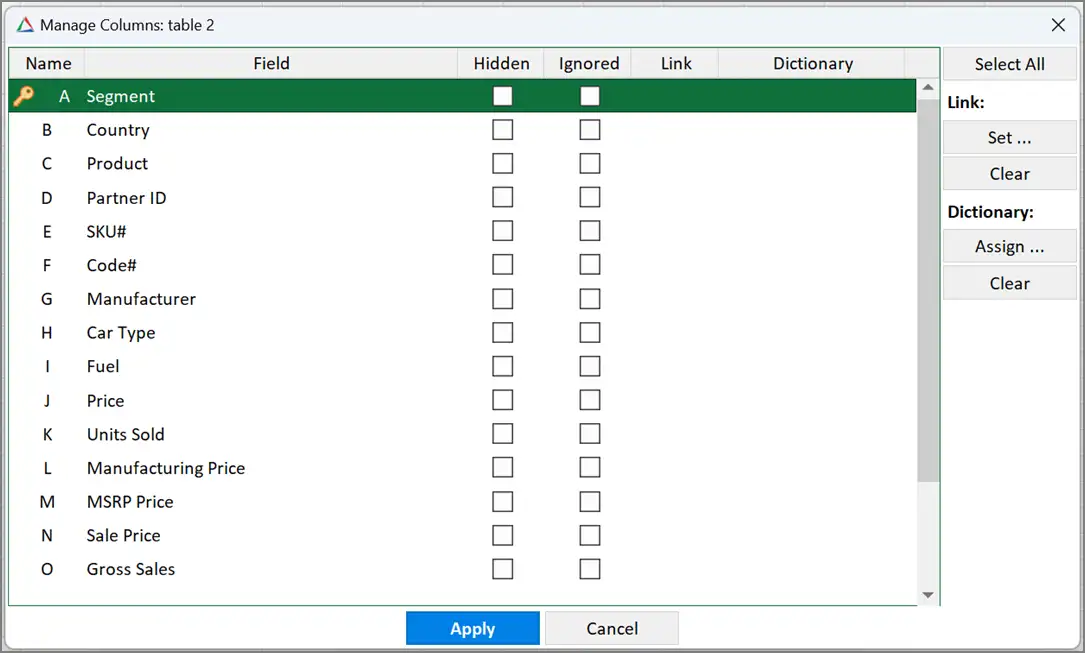
This
window contains all options that are applicable to the columns on the opened
worksheet.
Name
Name
of the column on the worksheet.
Field
Value
of the appropriate cell in the heading row on this worksheet. Usually, it
represents field name in table.
Value
in this column can be empty.
Hidden
Checked
if column is hidden. If you check value in this column, you change visibility
state of the column in the worksheet.
To
check\uncheck all the columns click on the heading of this column in list.
Ignored
Checked
if column is ignored from the comparison.
Ignored
columns are visible, but not included into comparison process.
They
are marked with icon in the heading and shown with muted text.
Link
If this
column is linked with column on the other worksheet this column displays name
of the linked column.
If
this value is empty – this column is not linked.
Dictionary
Displays
dictionary applied to this column to replace its values with another ones.
Select All
Selects
all items in list.
Link | Set
Displays
Link Columns Window to select a linked column.
Link | Clear
Clears
linked column for the selected columns.
Dictionary | Assign
Assigns
dictionary to the column.
Dictionary | Clear
Clears
dictionary for the selected columns.
Apply
Applies
changes made in this window to the worksheets. This command hides and shows
columns, marks them as ignored and establishes selected links.
No
changes are made in the worksheet until you press the Apply button.
Link Columns
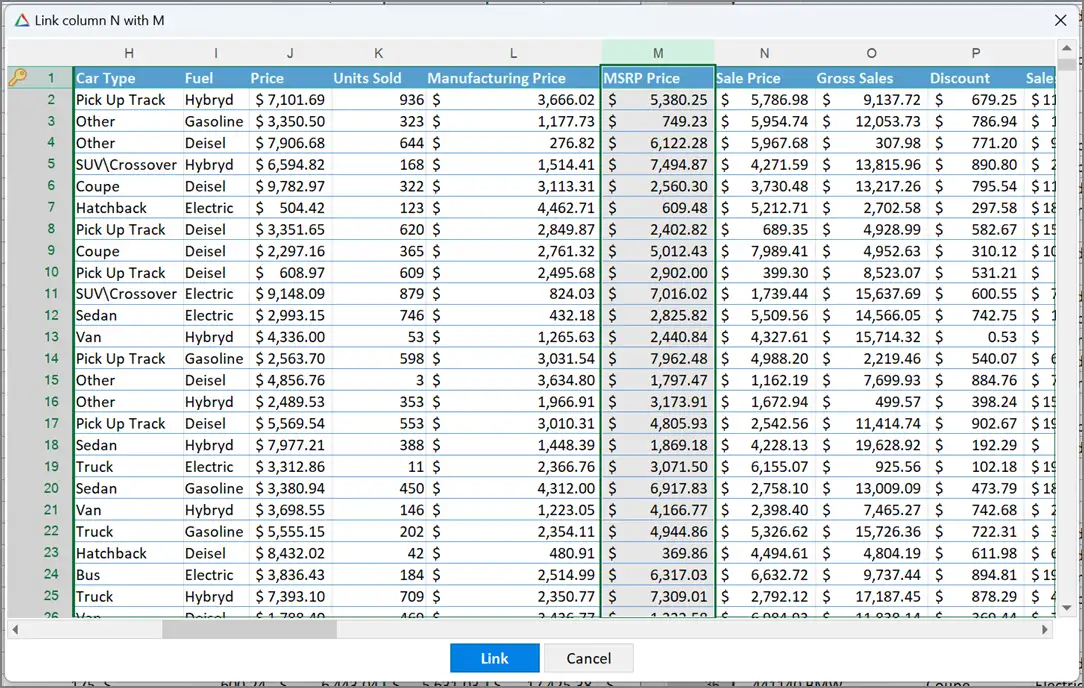
Displays
corresponding worksheet and selects column that should be linked with the
current one.
Link
Links
column selected on the worksheet with a column for which this window is shown.
Names
of the source column and target columns are reflected in the caption of this
window.
Outlined Report
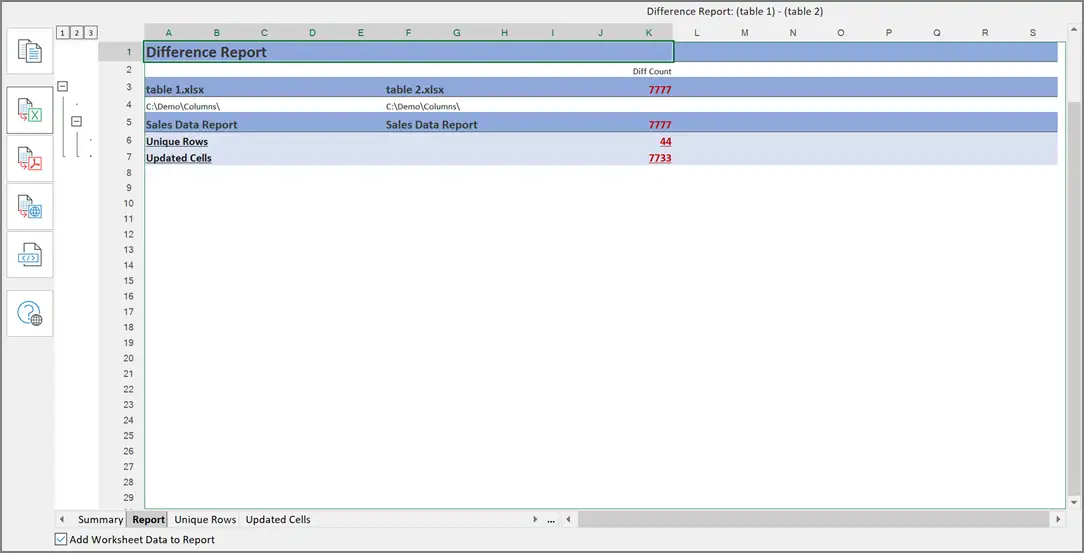
Report
window displays comparison report, that was exported into the Excel workbook
with outlined worksheets.
Report
contains following sheets:
- Summary
- Report
- Unique Rows
- Updated Cells
Summary
Displays
list of compared files and total count of differences of each type.
Report
Contains
list of compared worksheets in each file.
Displays
number of differences of each type in all the worksheets and total number of
differences found.
Unique Rows
Rows
that were identified as unique grouped by the worksheets.
Every
row contains original address in the column A and data from the worksheet in
other cells, starting from B.
Updated Cells
List
of all updated cells, grouped by the worksheets. Every cell contains address in
the columns A and F, and original and modified values.
If
formulas were changed, this worksheet contains text of the changed formulas.
Outline
button on the left side of the window collapses and expands groups of rows that
belongs to specific worksheets.
Copy
Copies
contents of the report into clipboard.
Export to XLSX
Saves
outlined report on disk as XLSX file.
Primary Keys
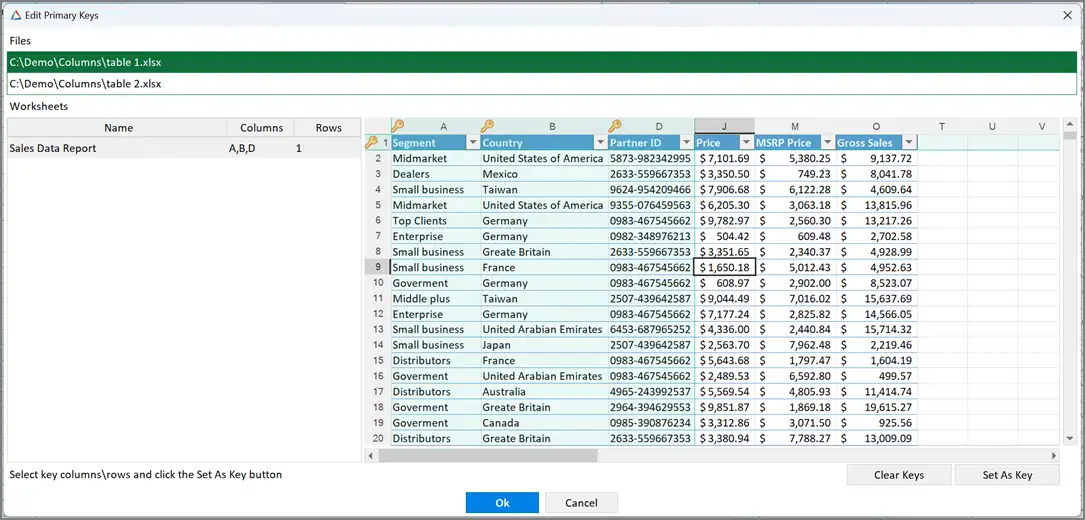
Displays
and edits primary key columns and rows on all worksheets in opened Excel files.
Files
List
of the Excel files opened in xlCompare. Select file in this list to view\edit
keys in the worksheets, contained in this file.
Worksheets
List
of the available worksheets with selected Primary Key columns and Heading Rows.
This
list allows single selection. Selected worksheet is shown in the Sheet window
on the right from list.
Sheet window
Contents
of the worksheet, that is selected in the Worksheets list.
Clear Keys
Clear
all primary keys on the worksheet.
Set as Key
If
column(s) are selected, xlCompare adds them to the primary key columns on the
selected worksheet.
If
row(s) are selected, xlCompare adds them to the list of Heading Rows on the
worksheet.
Recent Comparisons
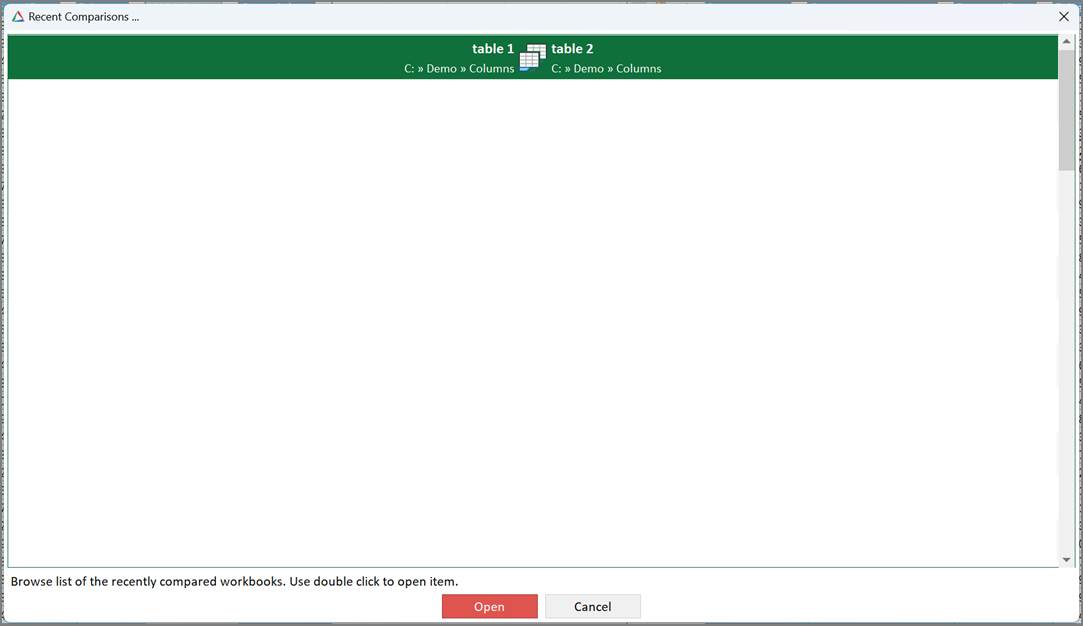
Displays
list of the most recent comparisons.
xlCompare
remembers all settings in the selected pair of worksheets, including hidden
columns, ignored columns, primary keys, dictionary, and linked columns.
To
open selected comparison, do the following:
- Double click on the item
- Select item in list and press Open button
You
can open recent item even if current comparison is opened.
If
comparison report is opened in xlCompare, it will be close before new
comparison is started.
Cancel
Close
list of the recent items without reopening the comparison.
Select 2 files
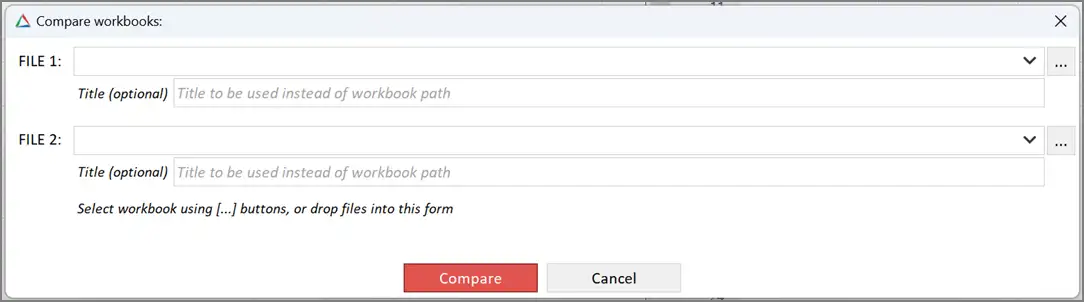
Selects
2 Excel files to be compared.
FILE1
Path
to file opened in the left panel (FILE1)
FILE2
Path
to file opened in the right panel (FILE2)
Title
Optional
string, that can override default caption on the left and right panel. This string
will be shown instead of FILE1 and FILE2 strings, that are used by default.
[…] buttons
Browses
for Excel file to be opened on your computer.
Compare
Proceed
to opening selected files in the xlCompare.
After
files are opened successfully, xlCompare shows you
Comparison
Wizard
window with default selection of the compared worksheets and primary
keys.
Select 3 files
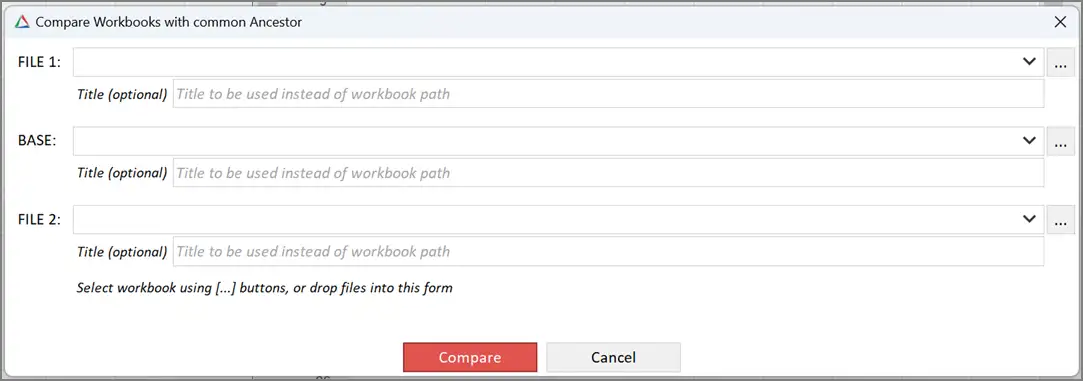
Selects
3 files to be compared.
This
window is used by xlCompare only if option 3-Files are active on the Compare
tab.
FILE1
Path
to file opened in the left panel (FILE1)
BASE
Path
to file opened in the middle panel (BASE)
FILE2
Path
to file opened in the right panel (FILE2)
Title
Optional
string, that can override default caption on the left and right panel. This
string will be shown instead of FILE1, FILE2 and BASE strings, that are used by
default.
[…] buttons
Browses
for Excel file to be opened on your computer.
Compare
Proceed
to opening selected files in the xlCompare.
After
files are opened successfully, xlCompare automatically runs the comparison and
presents you with a difference report.
In
this mode, xlCompare doesn’t show Comparison Wizard
window.
Zoom window
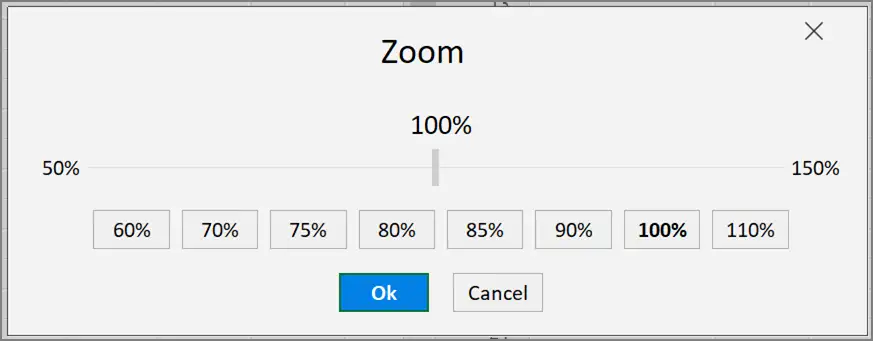
Sets
zoom percent, that is applied to all workbooks in the application.
Percent Scale
Move
the slider to adjust zoom percent.
Predefined Zoom Buttons
Sets
fixed zoom percent.
OK
Applies
selected zoom to the xlCompare panels.
Options Reference
xlCompare
is a complex tool that has a variety of parameters, that change application
behavior.
This
section contains detailed information on every option, that is used in
xlCompare.
How to view\edit options
There
are several methods to open Options window:
- Options command on the Compare tab on the Ribbon
- Ctrl+T hotkey combination
-
Options
command in the Context Menu on the worksheet
General
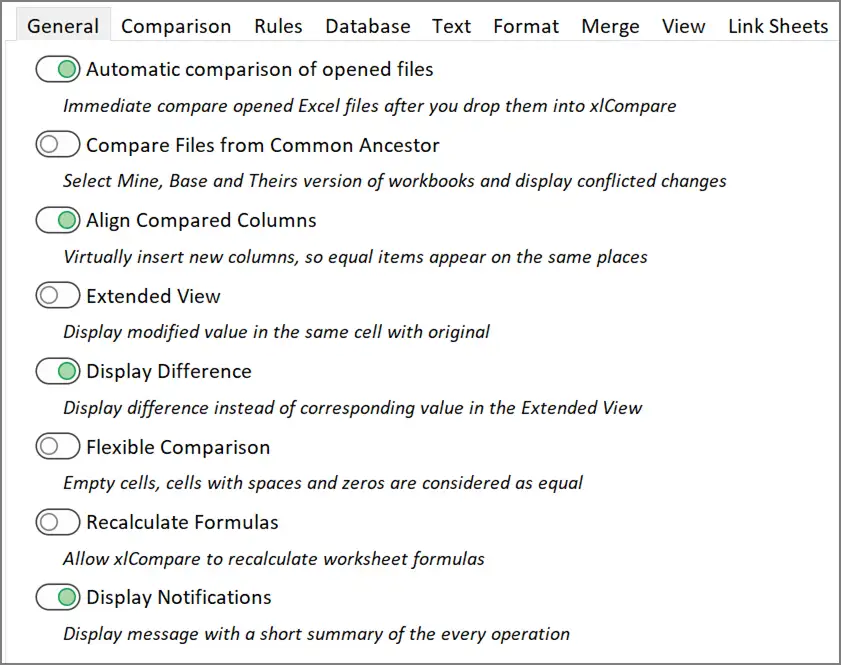
Automatic comparison of opened files
When
this option is turned ON, xlCompare immediately starts the comparison when you
open second Excel file in the application.
After
you drop second file into xlCompare window you get the Comparison Wizard
window.
If
you would like to start the comparison manually, turn this option OFF.
Compare files from common ancestor
This
option opens third panel in the xlCompare. With this option turned ON,
xlCompare requires 3 Excel files to be opened for comparison.
Compare
Files and Compare Sheets commands doesn’t start until you have 3 workbooks
opened.
Default
value for this option is OFF – application compares two Excel files for
differences.
Align Compared Columns
If
worksheet you are comparing have different order of columns, this option forces
application to put corresponding columns in the same order on both worksheets
in the Comparison Report.
Order
of the columns is built using the right(central) file as a primary(master)
worksheet.
With
this option turned OFF, worksheets preserve original order of columns in the
Comparison Report.
Extended View
In
the extended view mode xlCompare displays original and modified value in the
same cell. Modified value is shown with a muted text color.
This
option makes browsing differences simpler. You don’t need to look for the value
of the corresponding cell. But in this mode every row with changed cells gets
two times more space.
Display Difference
This
option is applicable to xlCompare only with Extended View option.
If
this option is turned ON, xlCompare displays difference with corresponding
value below every original numeric value.
If
option is turned OFF, xlCompare puts modified value below the original one.
This
option has no effect on the application if Extended View mode is disabled.
Flexible Comparison
When
you enable this option, empty cells, cells with spaces and cells with zeros are
treat as equal by the xlCompare.
Use
it to reduce number of the unimportant differences.
Default
value of this option is OFF – xlCompare thinks that empty cell and 0 is
different values and highlights these cells in the comparison report.
Recalculate Formulas
xlCompare
contains calculation engine (Spreadsheet Core) inside. xlCompare is able to work like Microsoft Excel and recalculate formula
values after every modification or by the user request.
By default,
calculations are disabled, they are not needed to compare two Excel files. But
if you would like to recalculate formulas in your files, you can turn this
option ON.
Display Notification
After
executing every comparison command xlCompare shows you a message with short
description of the results. In case if you have no differences in your files –
you will get a message Workbooks you are comparing are identical. If Excel
files are different – you will see number of the differences found.
By
default, this option is enabled, however if you don’t like this message. Just
turn OFF this option.
Comparison
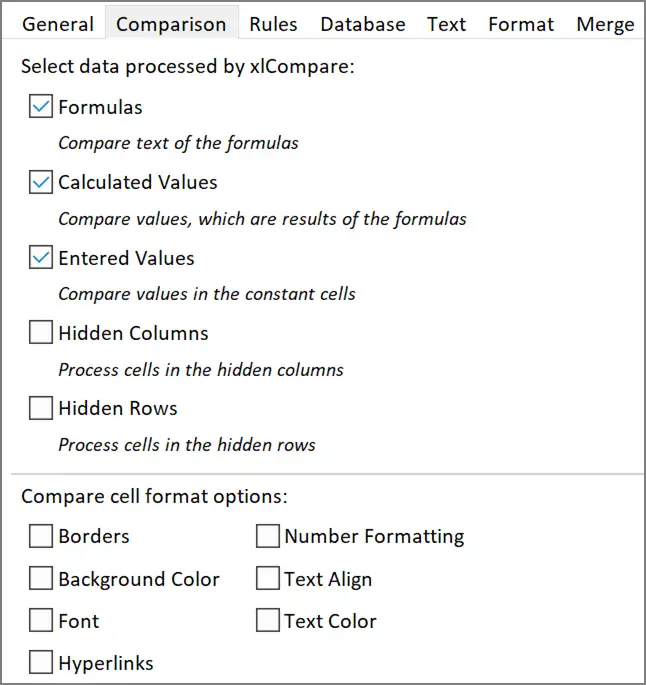
Select data processed by xlCompare:
xlCompare
allows you to select what will be compared. You can exclude hidden cells, cell formatting
options like text color and border from the comparison.
Formulas
When
this option is selected, formulas are included into comparison. When two cells
with formulas are compared, xlCompare compares text and structure of both
formulas. If you turn this option OFF, xlCompare will not compare text of the
formulas in cells.
Calculated Values
xlCompare
process not only text of the formula but value, that is a result of this
formula also.
This
option allows you to exclude results of the formulas from comparison and
compare only text of the formulas. You may use this feature when workbook
contains RAND or similar functions and values are changed after every
calculation.
Entered Values
When
this option is selected, xlCompare compares contents of the constant cells.
Cells that don’t have formulas.
In you
exclude this option xlCompare will analyze only cells with formulas and ignore
input cells.
Hidden Columns and Hidden Rows
xlCompare
allows you to decide whether to process hidden data in your worksheets. You may
hide some rows and columns to exclude this data from the comparison. This is a
way to filter data you would like to compare.
By default,
this option is turned OFF and hidden data is excluded from the comparison. If
you would like to look for the differences in the hidden data also, you can
enable this option.
Please,
refer to the Manage Columns topic to see how to hide columns on the worksheet
in xlCompare.
Compare cell formatting options:
xlCompare
allow you to decide if you would like to compare cell styles. Below are style
options you can include into comparison:
Borders
Background Color
Font
Hyperlinks
Number Formatting
Text Align
Text Color
By default,
cell formatting is excluded, because it may produce a lot of comparison noise.
But if you would like to locate colored or bold cells on your worksheets – you
need to enable these options.
Rules
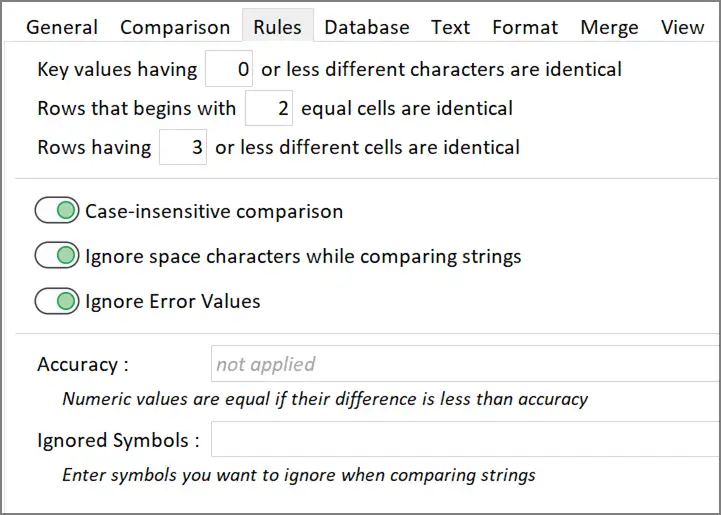
Key values having N or less different characters are identical
If
you are working with worksheet that has table structure with Primary Keys
columns, this option defines how keys values on you
sheets are flexible. By default this option is set to
0, and key values are compared for the exact match. But if data you are working
with, contains typing errors or exported in the other format - this option
gives you ability to treat keys like 0000-1111 and
00001111 identical.
Rows that begin with N equal cells are identical
Primary
aspect of the comparison is to align rows properly. For this case xlCompare
uses key values or other comparison strategies.
In
case if data in cells are different, xlCompare should decide, if this is
matching rows with different data or is absolutely different
(unique) rows. This option is one of the rules, used by xlCompare to make a
choice.
Default
option is 2. If two rows contain at least 2 equal cells on the beginning – they
will be considered as matching.
Rows having N or less different cells are identical
This
is another criterion that is used to align rows on the worksheet. This is
something like a limit, that defines which rows can be marked as matching. By
default, this option is set to 3. If two rows have not more than 3 different
cells and other cells are equal, they will be marked as matching.
Case-insensitive comparison
xlCompare
doesn’t take string case into account when compares string cells. For example,
values like Street and street are identical. This is default behavior. If you
require more precise comparison and capital letters are important – turn this
option OFF and xlCompare will point to all such differences.
Ignore space characters
If
this option is turned ON, xlCompare ignores space characters in the string
cells when comparing data. Strings like A A and AA
are identical. This allows to ignore trailing spaces that may appear during
exporting and aligning cell values.
If
you want to detect all such differences – turn this option OFF and xlCompare
will not exclude space characters from the comparison.
Ignore Error Values
If
you are worksheet contains error values, like #REF this option allows to ignore
them. If one of the two corresponding cells contains error values – cells are
not processed and not included into the comparison report.
Accuracy
This
is a precision used to compare numeric values. It allows you to ignore minor
changes in the numbers. For example, sales value was changed from $100.01 to
would like to ignore it – setup precision like 0.005 and this difference will
be ignored by xlCompare.
Ignored Symbols
xlCompare
allows you to ignore some characters from the text strings. For example, you’ve
exported value from database and get a result like this one: John Smith and John_Smith. Default behavior is to treat such values as
different. But if you add _ character to the list of ignored characters – both
strings become identical.
Database
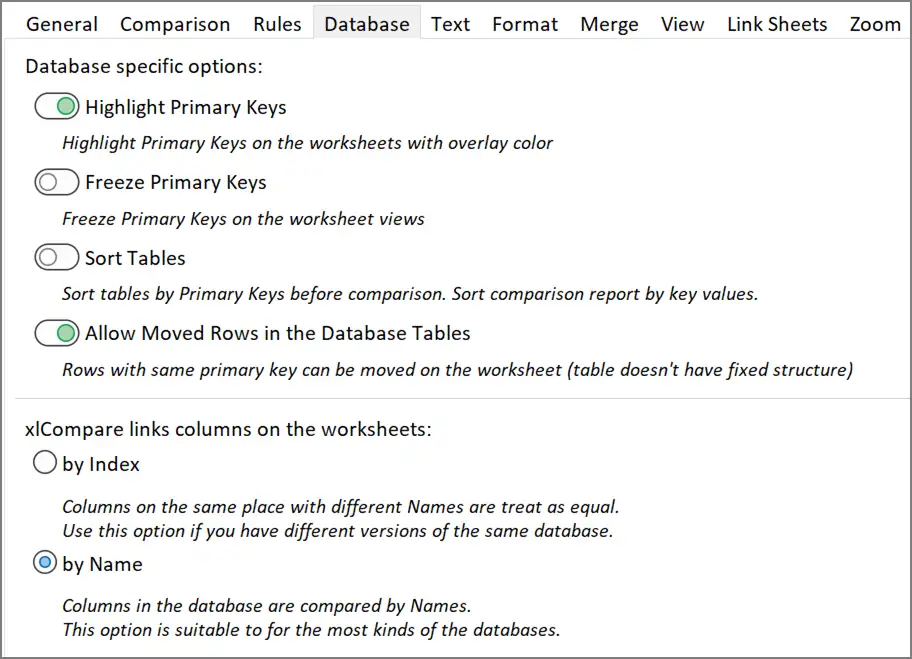
All
options in this group are applicable to xlCompare only if you are comparing
database tables with Excel table (Compare by Key) strategy.
Highlight Primary Keys
When
this option is turned ON, xlCompare highlights key columns and key columns by
modifying their fill color.
This
improves visual indication of the Key columns and heading rows.
Frees Primary Keys
If
this option is turned ON, xlCompare freezes Primary Key columns and heading
rows on the worksheet, so they become always visible when you scroll the sheet.
By default,
it is turned OFF.
Sort Tables
If
you enable this option xlCompare will sort your tables by primary key before
comparison and you will get your comparison report sorted.
Also,
worksheet is left sorted after you exit from the report mode. It is sorted
permanently.
This
improves visual representation of the data that have table structure.
Allow moved rows in the database tables
If
worksheet data you are working with contains several rows with identical value
of the key, this option defined if xlCompare should take order of such rows
into account.
By
default, xlCompare allows to mix rows with same value of key. This is normal
situation for most of the database tables, where all records are independent.
xlCompare links columns on the worksheet
xlCompare
need to align columns on two worksheets – determine which columns are equal and
which ones are different.
Default
value of this option – align columns by names. This is best solution. Usually,
columns in database sheets represent fields and every field name is present in
the first row.
However,
if you have a worksheet without field names you can change this option and link
fields by their index.
Please
refer to the Link Columns
command to get instructions on how to “bind” two mismatching columns.
Text
Options
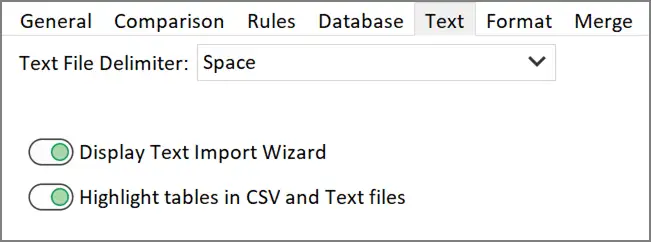
in this group are applicable to text and CSV files, opened in xlCompare.
Text file delimiter
When
xlCompare opens text file, usually it represents set of values delimited with a
specific character.
This
option allows you to define delimiter that separates two values in the string.
Display Text Import Wizard
xlCompare
has a Text Import Wizard that is shown when you attempt to open the text (TXT)
file. In this Wizard you need to select a delimiter used to divide text line
into set of values.
If
you are working with data in the same format, you can setup delimiter in the
options (Text file delimiter) and use this option to ignore the Wizard.
xlCompare will use same options silently on the opening of every file.
Highlight tables in CSV and Text files
CSV
file is just a text, but it contains table that can be filtered or sorted. So,
xlCompare formats it as auto filter table, by highlighting heading row and
adding filter button to the columns.
If
you don’t like the formatting, you can disable this option.
Format
xlCompare
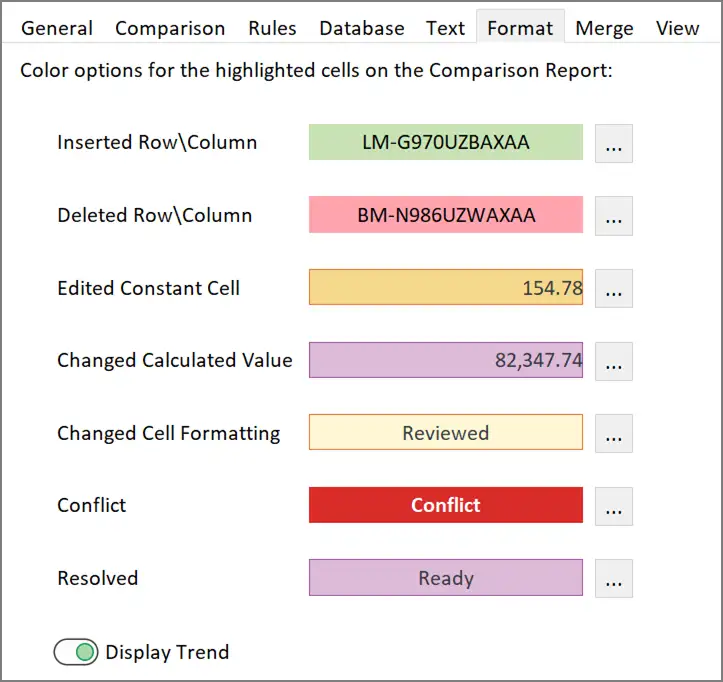
uses color formatting options to identify changes between two worksheets in the
comparison report. The formatting options used, are subset of the cells formatting
options that are available in the Excel application.
xlCompare
has following categories of differences that are highlighted in report:
Inserted rows\columns
Deleted rows\columns
Edited constant cell
Cell with changed calculated value
Cell with changed formatting
Conflict
Resolved cells
To
modify the formatting for each group click on the
sample area or use … button near the sample.
For
each of the groups you can set following formatting options:
Fill color
Border color
Text color
Bold font
Italic font
Strikethrough font
Display Trend
If
this option is turned ON, xlCompare displays tendency icon near every changed
numeric cell. Tendency icon indicates increase or decrease of the value in
comparison to the value of the corresponding cell.
Red
down arrow means that value of this cell is bigger than the corresponding
value.
Green
up arrow means that value of this cell is less than the corresponding value, so
value was increased.
Merge
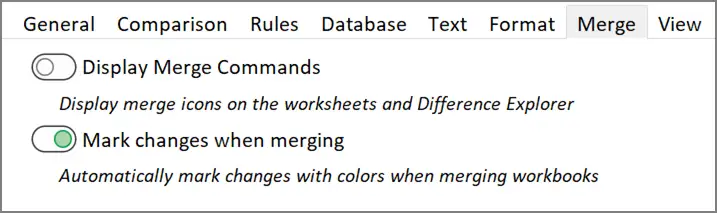
Display merge commands
Shows
merge commands on the worksheet in the Comparison Report mode. Merge command is
a small icon with arrow that copies cell value into the corresponding
worksheet.
By
default, merge commands are hidden. Turn on this option if you would like to
merge changed cells on the worksheet.
Mark changes when merging
Highlight
every merged cell with cell formatting options, applied to this cell in the
comparison report.
If
your cell has orange formatting in the comparison report, merge operation will
assign same cell style formatting to the destination cell.
View
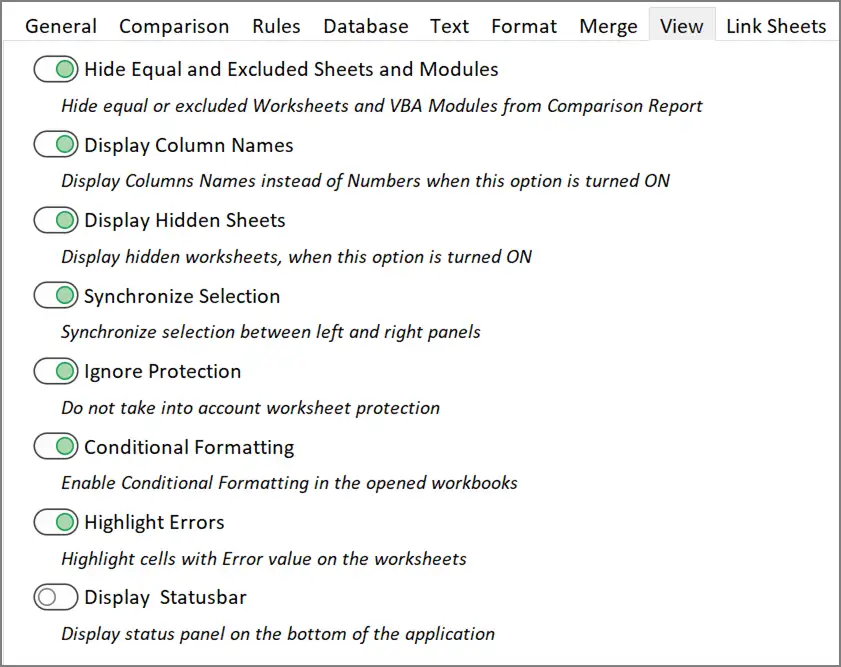
Hide equal and excluded sheets and modules
When
this option is turned ON, every worksheet that doesn’t contain changed cells is
not shown on the worksheet tab in the Comparison Report mode.
When
this option is turned ON every Visual Basic Module and Form that doesn’t
contain changed lines of code and changed controls is not shown on the
navigation tab.
When
this option is turned OFF – all worksheets and VBA Modules and Forms are
visible.
This
option is applicable to xlCompare only in the Comparison Report mode.
Display column names
xlCompare
displays columns names – A, B, C, … or columns indexes – 1, 2, 3, … This option
defines what would you see in the columns heading on the worksheets view.
Display hidden sheets
xlCompare
displays hidden worksheets on the worksheet tab if this option is turned ON.
Hidden worksheet is marked with icon, that indicates that sheet is hidden in
the workbook.
Synchronize selection
When
this option is turned ON, xlCompare performs following operations synchronously
on all opened worksheet:
- Select range of cells
- Scroll worksheet up or down
- Apply filter
- Sort rows
- Set primary key
- Hide column
Ignore protection
Allows
xlCompare to select protected cells on the worksheet. By default, this option
is turned ON. Comparison operations require to select all changed cells on the
worksheet in the comparison report mode, including the protected ones.
Conditional formatting
Enables
or disables conditional formatting on the worksheets. Disabled conditional formatting
allows to open Excel filter more quickly, without updating cells affected by
conditional formatting rules.
Highlight errors
Highlight
cells that contains error value with fill color and bold font. By default, this
option is turned ON. This makes error values more contrast among other cells on
the worksheet.
Display status bar
Hides
or shows status bar in the application. By default, status bar is hidden.
Link Sheets
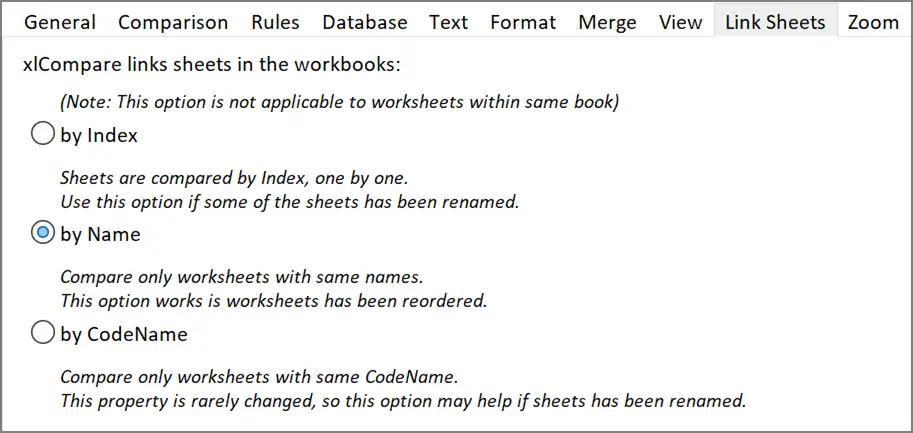
xlCompare
scans two Excel files and links all worksheets into pairs to be compared. This
option defines criteria used by xlCompare to link worksheets:
by Index
worksheets
are linked in the order they exist in the file.
by Name
worksheets
with equal names create a pair to be compared.
by Code Name
worksheets
with equal value of the Code Name property are linked into pair.
Zoom

Apply this Zoom to all opened workbooks
Defines
Zoom percent that overrides Zoom setting in the workbook. With this option
turned ON, xlCompare applies specified Zoom percent to every loaded file.
Window
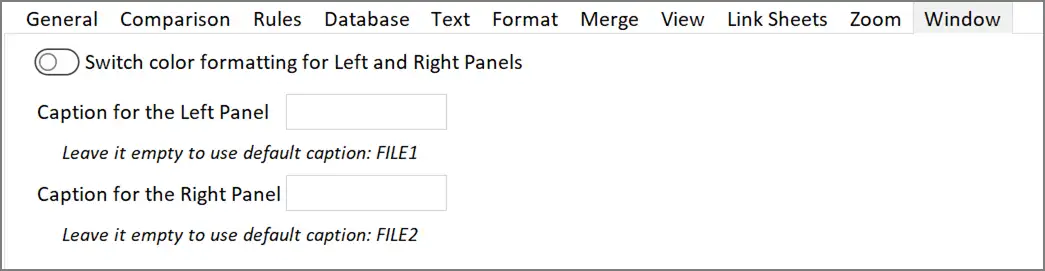
Switch color formatting for left and right panels
Changes
panel appearance in the application main window. Panel that is supposed by
display FILE1 and receives green formatting for new rows, is placed on the
right side. Panel that displays FILE2 is moved to the left side of the window.
Caption for the Left Panel
Provides
are new caption for the Left Panel, that overrides FILE1 text.
Caption for the Right Panel
Provides
new caption for the Right Panel, that overrides FILE2 text.
Difference Explorer
Difference
Explorer is a panel in the bottom part of the xlCompare window, that displays
all the differences found by xlCompare in a form of structures list.
All
differences are grouped by type in the Difference Explorer.
Layout
of the Difference Explorer is fixed and can’t be changed.
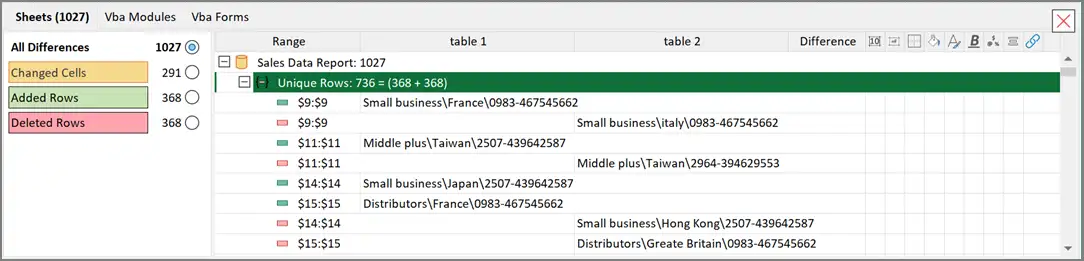
Note:
Difference Explorer is hidden by default. Apply Display Results command on the
Compare tab to open this panel.
Difference Legend
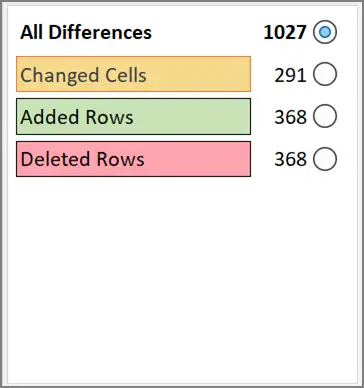
Left
part of the Difference Explorer window contains difference legend – short
summary of all the differences.
xlCompare
displays the highlighting sample used on the worksheet with description of the
data that receives this formatting in report.
Every
sample displays count of the differences of this type, that is present in
report.
Click
on every sample selects appropriate radio button and filters differences of
this type in the list.
3 lists of differences

Difference
Explorer window consists of 3 tabs:
- Sheets
- Vba Modules
- Vba Forms
All
differences found by xlCompare are divided into changes found on sheets, in the
VBA macros and on the VBA forms. Every group of these differences is presented
by its tab on the report.
Select changed item in the xlCompare
To
be pointed to the context of the modification on the worksheet, select item in
the Difference Explorer.
xlCompare
opens appropriate worksheet and selects range that represents this
modification. For the updated cell you will have this cell and its
corresponding cell selected.
Command line
xlCompare
can be used in the command line mode.
Command
line arguments allow to integrate xlCompare into other application as extern
diff viewer row XLSX\XLSM\XLS’\CSV\XML file formats.
Compare two Excel files
xlCompare.exe
[file1] [file2]
xlCompare.exe
/mine:[file1] /base:[file2]
xlCompare.exe
/1:[file1] /2:[file2]
Compare three files
xlCompare.exe
[file1] [file-base] [file2]
xlCompare.exe
/mine:[file1] /base:[file-base] /their:[file2]
xlCompare.exe
/1:[file1] /2:[file-base] /3:[file2]
Additional Command line parameters
/merge
Open
workbooks and perform automatic merge. In case of conflicts merge operation
fails and you get conflict list on the screen.
/console
Work
in the console mode without interface.
/quit_on_close
Close
the xlCompare application, after you exit from the comparison mode. This option
is useful for using xlCompare as excel diff tool in other application. After
you've finished working with comparison report the application is closed
/testConflicts
Test
passed workbooks for possible conflicts in the merge operation.
/titleMine:[title
string]
/title1:[title string]
Use
this title instead of path to the FILE1 (left workbook). You can use this
option to specify alternate path. When file was downloaded from repository into
temporary folder, this option allows to display "readable" file name.
/titleBase:[title
string]
/title2:[title string]
Use
this title instead of path to the BASE workbook. You can use this option to
specify alternate path. When file was downloaded from repository into temporary
folder, this option allows to display "readable" file name.
/titleTheir:[title
string]
/title3:[title string]
Use
this title instead of path to the FILE2 (right workbook). You can use this
option to specify alternate path. When file was downloaded from repository into
temporary folder, this option allows to display "readable" file name.
/output:[file path]
After
merge command is completed, results are saved in the file, specified in the
file-path parameter.
/r:[report-file]
Save
comparison report in the file, specified in the report-file parameter.
Using xlCompare in a batch mode
Use
this mode to compare several excel files in one go and get the comparison
report for all processed files. You can use it from the bat file or from any
other application, that allows to call xlCompare.
/batch
Use
xlCompare in BATCH mode. In this mode application compares set of excel files
passed to the input and saves difference report in the XLSX file (as output).
xlCompare
expects following command line syntax:
xlCompare.exe
/batch /console [file-path] /r:[report-file]
Where
the file-path argument specifies path to workbook that contains list of
compared pairs of excel files.
Contact us
To
get technical support, report issues you have with the software and for all
other questions, please contact us by e-mail: support@SpreadsheetTools.com
or by using the Technical Request Form on the xlCompare website: