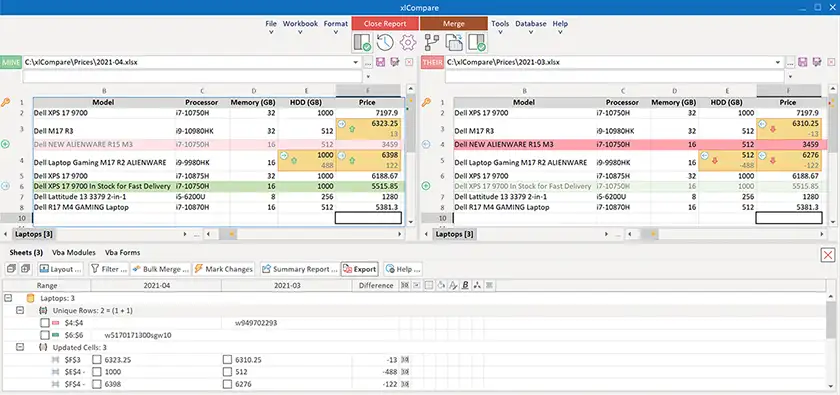
xlCompare features:
- Compare Excel Workbooks, Worksheets or data ranges - xlCompare allows you to select
what you want to compare:
- all worksheets in the 2 selected workbooks
- 2 selected worksheets from any workbooks
- specific ranges
- Compare Names - each complex workbook uses names which refers to specific range
or contains formula. Name can be present in the Workbook scope or in the Sheet scope.
xlCompare compares all names - global and worksheet-specific names. It finds all changed, new and
deleted names and shows you detailed comparison report.
Using xlCompare you can quickly copy names between workbooks.
- Compare VBA Projects - this is important feature, because workbook may contain
thousands lines of VBA macros. Search for differences may take a lot of your time. Also
you can miss the difference between versions of your files. xlCompare compares all modules
and shows you complete list of found changes.
- Compare data by primary key. If data on the worksheet consists of records, which
has primary key, it should be properly compared. Usual algorithms for cell-by-cell
comparison don't work in this case. xlCompare finds primary key in each table and uses it
to compare data.
- Tool is easy to use. Our primary goal is to make xlCompare as easy as possible.
Comparison operations are done in single click. xlCompare doesn't ask user for options, it tries
to determine all comparison parameters itself. xlCompare uses own algorithms to find
primary key without asking you about it. Comparison options should be used only if you need
specific comparison - compare only cell values or find changes only in formulas, not
in the input cells.
- Merge Workbook Commands. xlCompare has set of commands to merge data between worksheets.
In one click you can add\delete rows and columns. Move cell contents from one worksheet to another one.
- Color-coded difference report. As a result of the comparison you get difference report
in which each difference is highlighted with color. You can modify default colors used to mark differences
and use background colors, stripe patter or font options to mark changes in your report. xlCompare
produces report which looks like original workbook in Excel with all formatting options. We've
tried to make your work with report window as comfortable as possible.
- Create intersection of workbooks. xlCompare allows you to extract various values from
compared sheets. In one command you can:
- extract only changed data from one of the sheets
- extract only data present in the both sheets
- Export changes to sheet/text file. If you need to create a report with found differences -
xlCompare exports difference to new worksheet. You can use it to create report for your comparison.
- Easy navigation. Difference Browser shows all found changes and allows you to
easily navigate through them. This feature makes representation of the found differences
as suitable as possible. Also you can merge workbooks from this window.
- Synchronize Workbooks. When browsing Difference Report xlCompare synchronizes
workbook views. This workbook synchronization feature allows you to see changed
contents in both files when you activate difference in the Browser window.
More information about excel workbook synchronization tool you can find in this article:
Excel Synchronize.
-
64-bit platform is supported. If you have Excel 2010 64-bit you can download and install xlCompare for Excel 2010 64-bit.